How to Integrate PriceLabs with Baya
PriceLabs can send daily rates, minimum stay requirements, check-in and check-out restrictions to Baya for up to 720 days in advance.
Feature Availability
See what features work with your PMS. Click here to check which customizations are supported for your platform, so you know what options will be available once your listings are connected.
Before You Start
Before proceeding with the integration, keep the following in mind:
Baya supports multi-unit properties. A multi-unit property is a parent listing with one or more sub-units.
- A Calendar Block on one or more sub-units blocks the full property, not only the selected sub-unit.
- To block a single sub-unit, create an Owner Stay reservation for that sub-unit and the dates you want to close.
Step 1: Connecting Baya to PriceLabs
- Log into PriceLabs.
- Click "Add your listings" (if you have no listings) or "Add/Reconnect Listings" (if you already have listings).
- Select "PMS / Channel Manager" and choose Baya from the dropdown.
- Tick the checkbox to "Allow Baya to add listings to your PriceLabs account." Then click Save.
Step 2: Connect & Setup in Baya
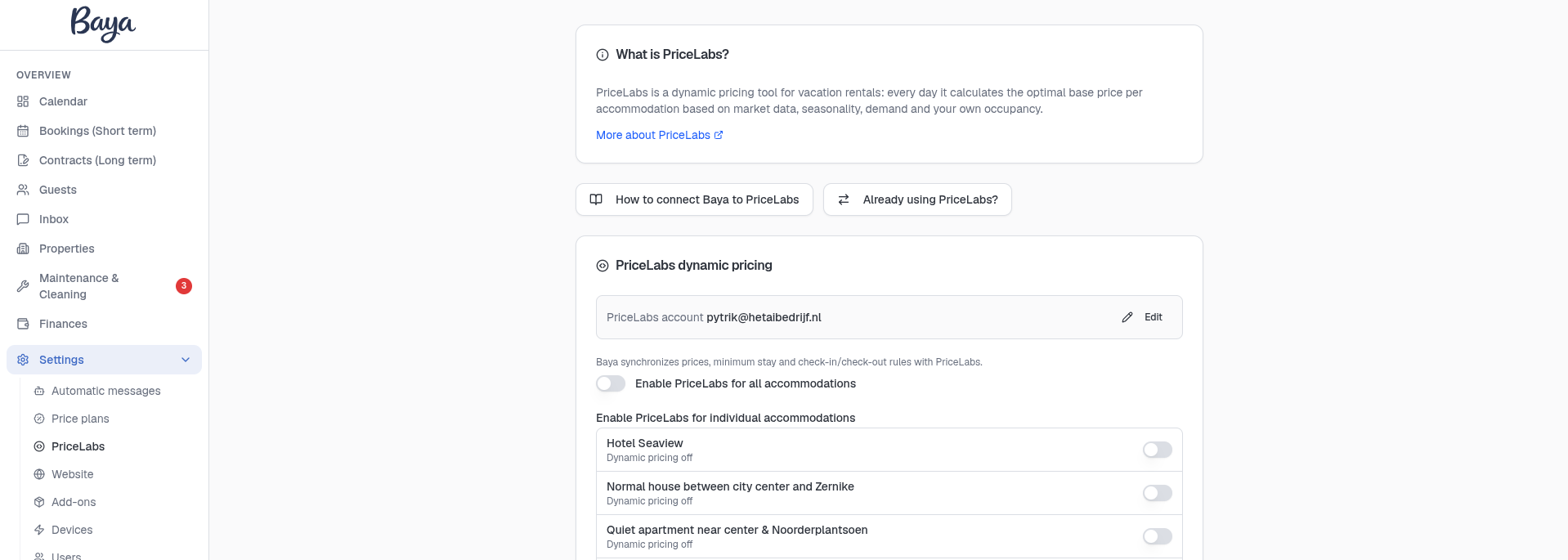
- Go to Settings -> PriceLabs, enter the PriceLabs account email and click on Save.
- Enable the toggle for the listing in the list on the PriceLabs settings page (or on the property page itself).
Step 3: Reviewing & Syncing Prices
- By this time, your Baya listings will appear in your PriceLabs dashboard.
- Follow the Getting Started guide to set up your listings.
- Review your pricing and settings in PriceLabs.
- Enable Sync Prices for automatic updates, or click "Sync Now" to push updates immediately.
- Check your Baya account to verify updates.
- Once "Sync Now" is enabled, PriceLabs will overwrite the Prices set in Baya. So, setup any overrides only in PriceLabs.
Step 4: To Disconnect Property from PriceLabs
Turn off the toggle for the listing (In the PriceLabs Settings page or the Property Page in Baya).
In the Property Page:
In the PriceLabs Settings Page:
Next Steps
✅ Review pricing and rules regularly.
✅ Join our Intro to PriceLabs Live Training for further insights.
✅ Join our Intro to PriceLabs Live Training for further insights.
✅ With these steps, your PriceLabs-Baya integration should run smoothly!